Finishing your plan in Pronoia
The video loads from YouTube only when you press play. Until then, this page makes no contact with YouTube. youtu.be/FMqWN7rEcpc
Facilitation (Pronoia)
Once the study has been created with the wizard or imported as a plan, it is a draft in Pronoia. The template has filled in a frame: the description, the rounds, the panel roles and the theses. Some things, however, are always left to you, because they are facts about your study that a template cannot know.
This guide takes the draft to the point where the panel can be invited to the first round. Set aside half an hour to an hour – most of it goes into the theses and the panelists.
Where you start
On the wizard's last screen, press Open in facilitator view →. On the import page the same button is Open the study →. Both screens also link to this guide.
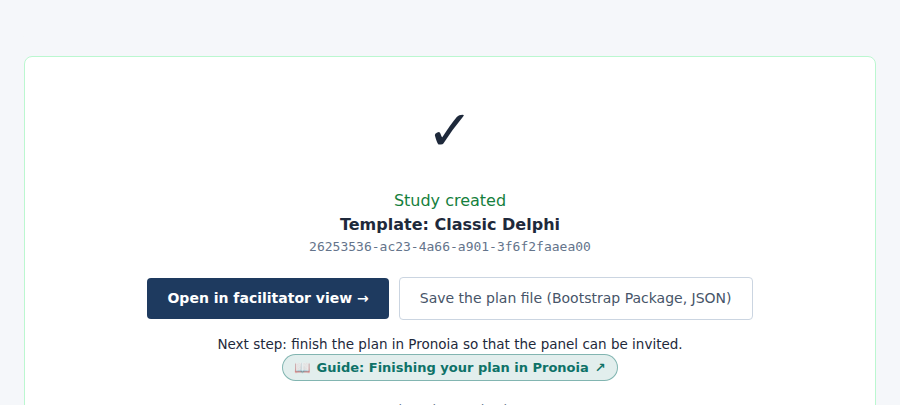
Later you reach the study from the left side of the dashboard, under Studies.
What now? and the four areas
At the top of the facilitator view is the What now? card. It tells you which stage the study is in and lists what blocks progress (BLOCKED) and what is still missing (MISSING). The link on each row takes you straight to the place where the item is fixed.
Below the card are the study's four areas: Planning, Collection, Analysis and Reporting. In this guide you work almost entirely in Planning. Its tools are Overview, Settings, Round plan, Panelists, Theses and AI panelists.
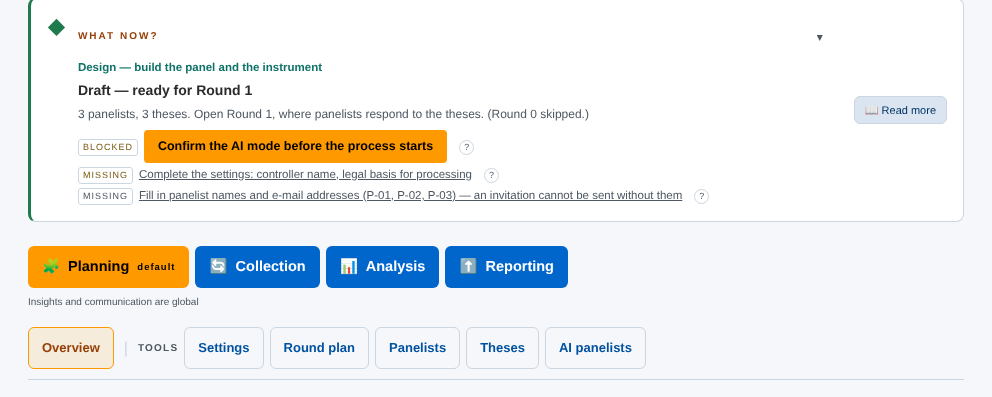
Next to each view's heading is a label saying what a change applies to, for example Applies to: the study or Applies to: round 1. It tells you whether you are changing the whole study or one round.
Overview: what is still missing
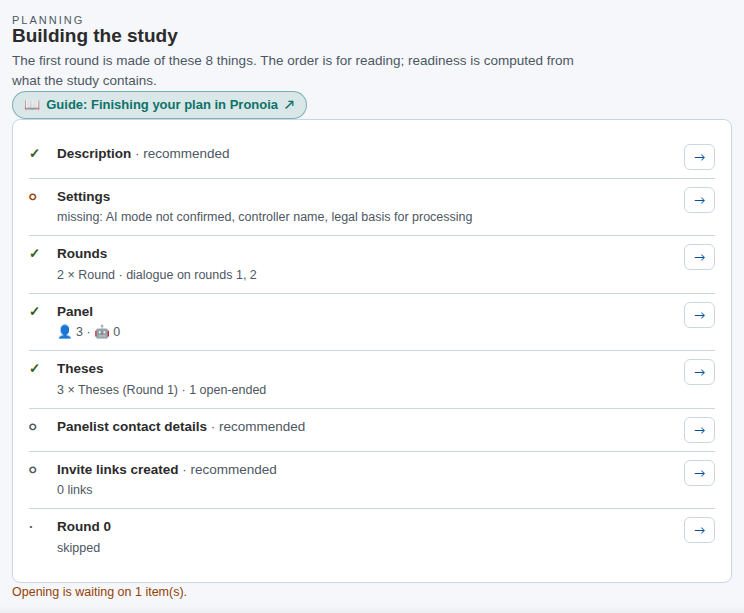
Overview is a list headed Building the study. Pronoia computes it from what the study contains – you do not tick it yourself.
- ✓ means the item is in place.
- ○ means something is missing from the item.
- · means a decision, not a gap (for example whether Round 0 is run).
- The label recommended means the item does not block opening, but it is worth taking care of.
Below the list it says how many blocking items are open: Opening is waiting on 1 item(s). The → button on a row takes you to the view where the item is fixed.
What came from the template, what is left to you
| Item | From the template | Your task |
|---|---|---|
| Description | the template's generic text and FILL IN text | title, description and phenomenon for your own topic |
| Settings | orientation, language, AI mode | confirm the AI mode, controller, legal basis |
| Rounds | the template's number of rounds | check the number and Round 0 |
| Panel | roles in the matrix (P-01, P-02 …) | fill the cells where a viewpoint is missing |
| Theses | example theses | write theses for your own phenomenon |
| Panelist contact details | – | real names and email addresses |
| Invite links created | – | create the links once everything else is ready |
The order is up to you. Below, the items are covered in the order that is usually most natural.
1. Make the basics your own
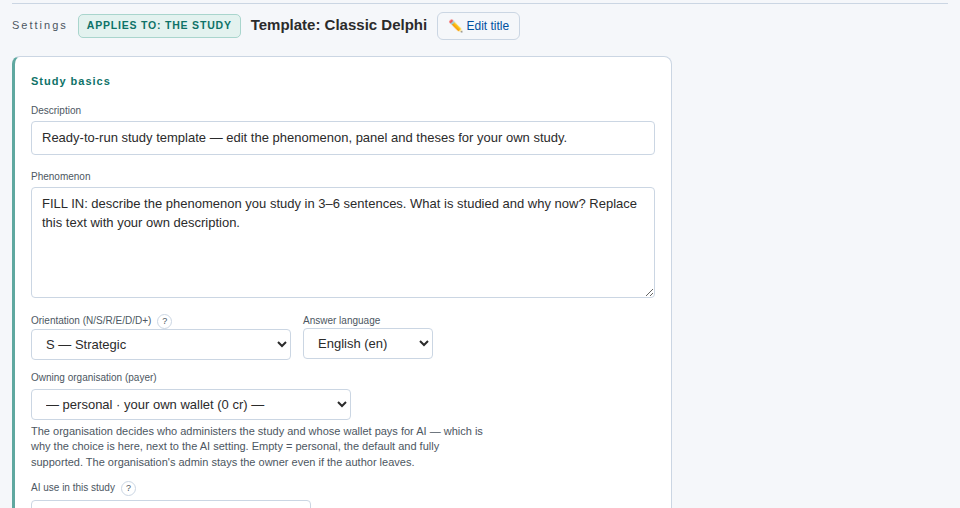
Open Settings. At the top is Study basics:
- Edit title opens a window where you change the study's name. A template's name begins with Template: – change it, because the panelists see the name in the invitation.
- Description is a one-sentence introduction.
- Phenomenon is the core of the study: what is studied and why now. Replace the template's FILL IN text.
Finally, press Save.
2. Confirm the AI mode
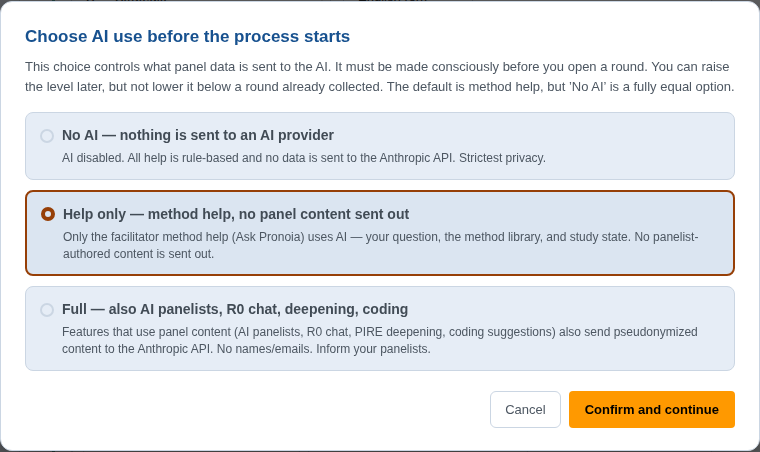
The first round cannot be opened until you have consciously chosen what AI may do in the study. Under AI use in this study, press Confirm the AI mode. Choose one of three:
- No AI — nothing is sent to an AI provider
- Help only — method help, no panel content sent out (default)
- Full — also AI panelists, R0 chat, deepening, coding
Press Confirm and continue. Afterwards the section says The AI mode is confirmed. If you later change the mode, you confirm it again.
3. Controller and legal basis
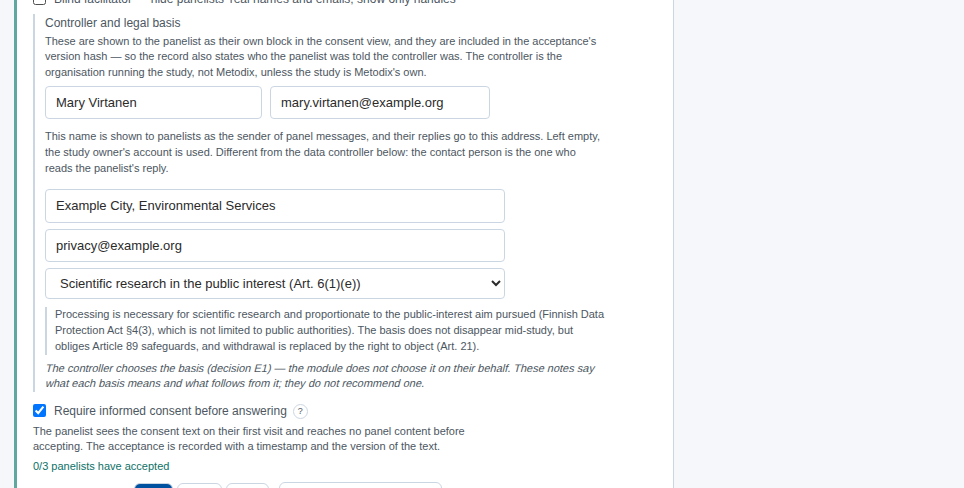
In the template, Require informed consent before answering is already switched on: the panelist accepts the consent text before seeing any panel content. That is why invite links cannot be created until Controller and legal basis has been filled in:
- Contact person's name and Contact person's email – you, or whoever answers the panelists' messages. Left empty, your own account details are used.
- Controller's name and Contact details – the organisation that carries out the study.
- Legal basis for processing – choose from the list. Under each basis is a note on what it means.
The Consent text is ready in three languages. You do not need to write it unless you want your own wording.
Press Save. Once the fields are in place, the Settings row in the overview turns ✓.
4. Rounds
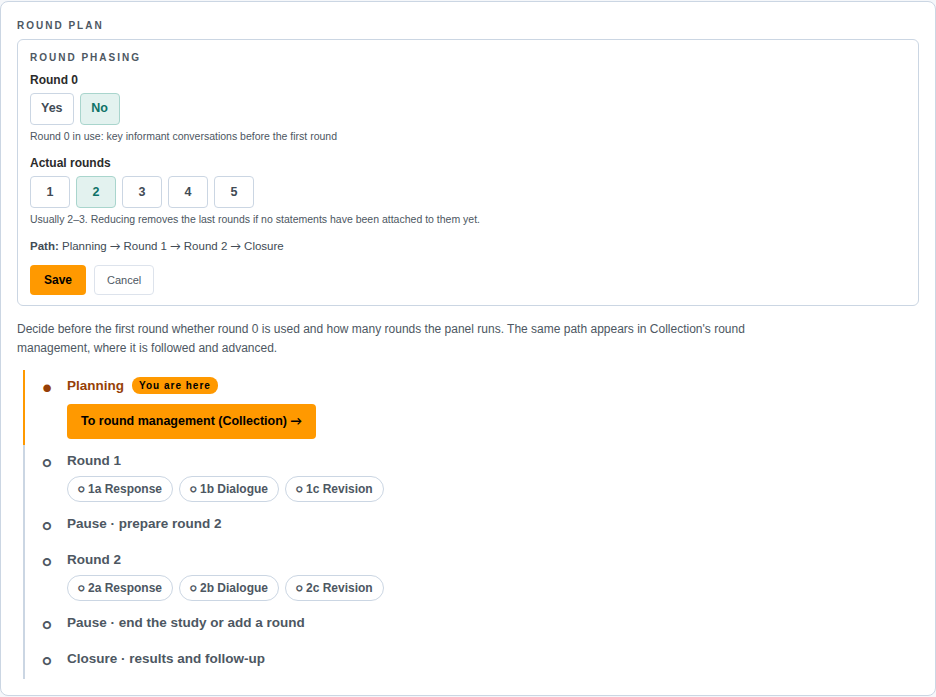
Open Round plan and press Edit phasing. Here you decide two things:
- Round 0 – whether an orientation is run before the first round, in which key informants discuss the phenomenon. In the template it is off (No). Choose Yes if you want to hear the panel before the theses are fixed.
- Actual rounds – usually two or three. Reserve one too many rather than too few: an unused round costs nothing.
The path shows the whole arc from planning to the end. Press Save.
If you switch Round 0 on, its orientation questions are set on the Collection tab Round 0. More on that in The facilitator's process, from planning to handover.
5. Make the theses your own
Open Theses. At the top is a form for a new thesis, and below it the theses of round 1. The template's theses are written in general terms and include an instruction in brackets, for example (Edit for your own phenomenon.)
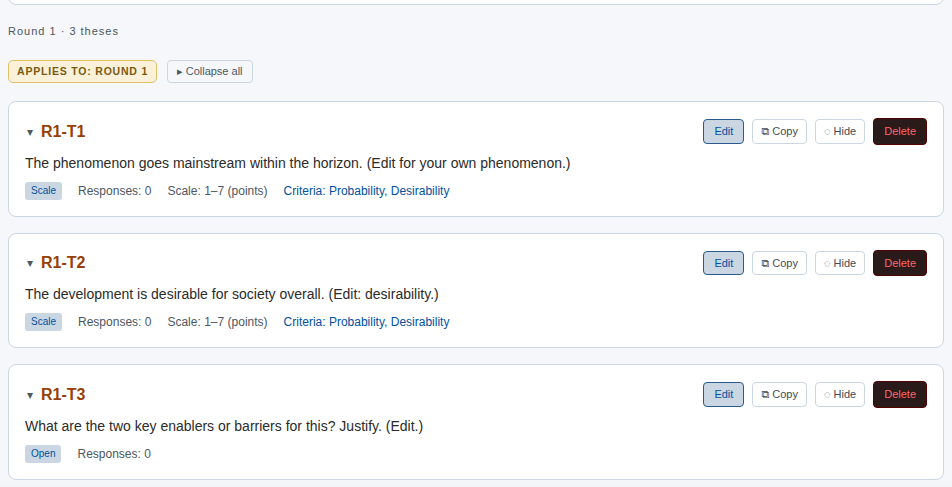
Press Edit on a thesis and write your own. In the same form you can add an explanation and adjust a scale thesis's criteria, such as probability and desirability. Preview: how a panelist sees this question shows the thesis through a panelist's eyes. Press Save.
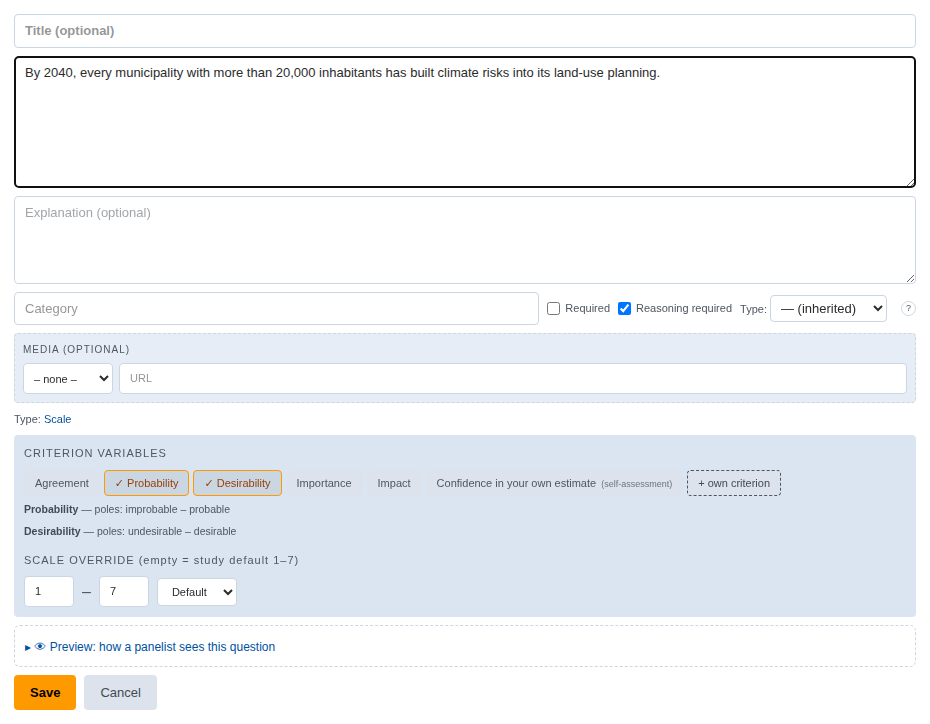
You add a new thesis with the form at the top and the + Add button; there you also choose the thesis type, for example Scale or Open. A template thesis you do not need can be deleted (Delete) or hidden (Hide).
6. Panel and panelists
Open Panelists. At the top is the panel matrix: the template's roles (P-01, P-02 …) are placed in cells by expertise and stake. Below the matrix, PANEL COVERAGE shows how well the viewpoints are covered: Coverage score, Missing viewpoints (empty cells) and, when needed, the warning Panel supplement recommended before the round.
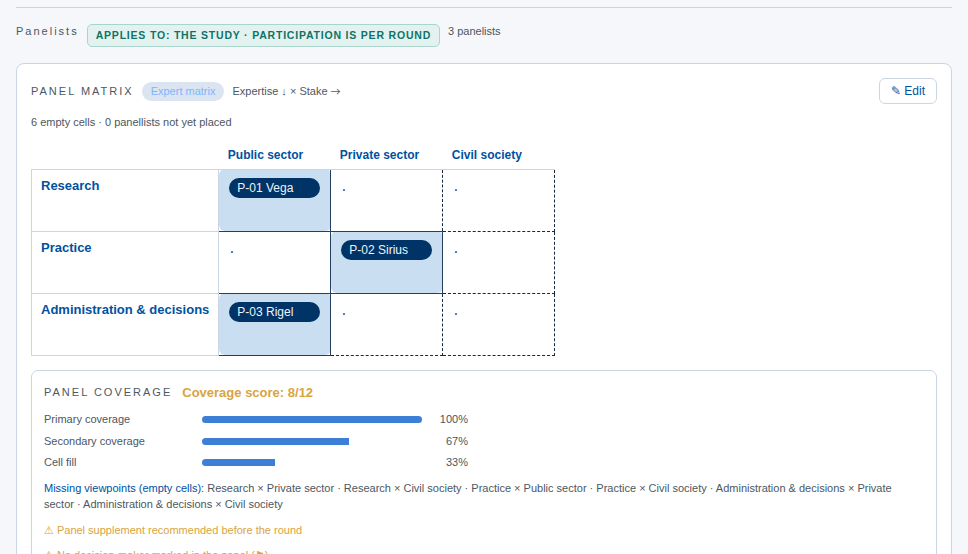
The template's roles are places, not people. Press Edit on each one and enter the real person's name and email. On the same row you can check the cell and mark the person as a decision-maker (Decision-maker). Press Save.
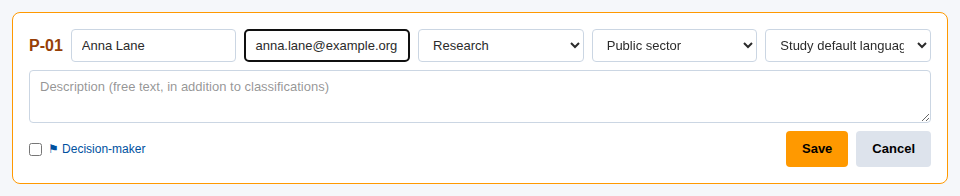
Add new panelists with the form in the view and the + Add button – especially to the cells where a viewpoint is missing. A panelist without an email address cannot be invited, so the Panelist contact details row in the overview turns ✓ only when everyone has contact details.
View as panelist shows the study as a panelist sees it.
7. AI panelists (optional)
If you chose Full as the AI mode, you can add AI panelists on the AI panelists tab: Create 5 default profiles, Generate profile suggestions from the phenomenon, or Import Planning Handoff. AI panelists are always marked in the panel. In a first study they are not needed.
8. Invite links
When everything above is in place, go to the Collection area and open Invitations. Press Generate invite links. Pronoia creates a personal link for each panelist and shows, under EMAIL TEMPLATE, an invitation message you can send. Copy copies a link to the clipboard.
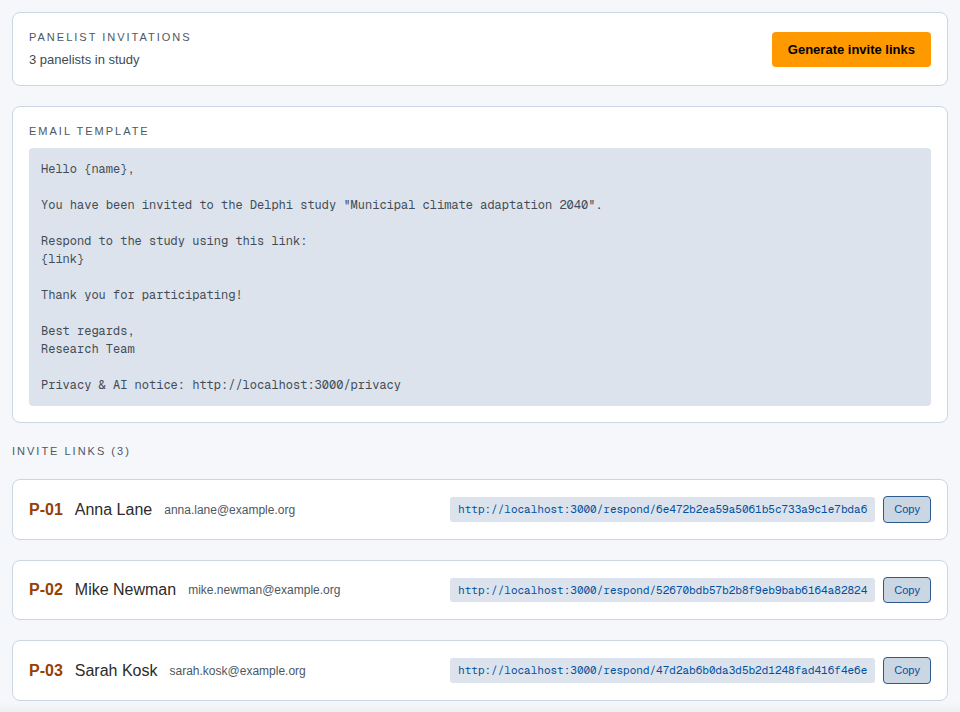
Creating the links does not yet send anything or open the round.
Ready to invite
Go back to Overview in the Planning area. When the list is in place, it says Everything that blocks opening is in place. below it, and the What now? card suggests Move to the response phase next.
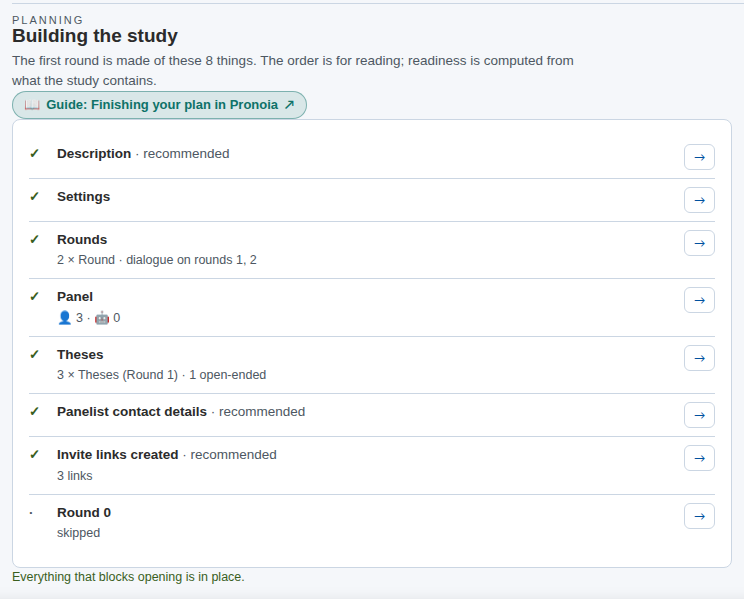
The plan is now ready. Opening the first round, sending the invitations and following the collection are the subject of the next guide: Your first round in Pronoia.
Remember
- Nothing is locked. Theses, panelists and settings can still be edited between rounds – the guide simply follows the order in which the first round comes together.
- The list is computed. If a row stays ○, press its → button: it takes you to the place where the item is fixed.
- Practise safely. You can rehearse on an example study before your own: The facilitator trial in five stages.