Your first Delphi with the wizard
The video loads from YouTube only when you press play. Until then, this page makes no contact with YouTube. youtu.be/PUqzt1FtJ9Y
Facilitation (Pronoia)
The wizard is the way to your first Delphi. It asks for the study's details in seven steps, and a ready template fills in every step for you. Your task is to change what is yours: the topic, the phenomenon, the panel and the theses.
Open the wizard from the dashboard button ➕ New study (wizard). Set aside half an hour to an hour.
Before you start
- Every step has guidance. Open it from What happens in this step? The ⓘ next to a field explains a single choice.
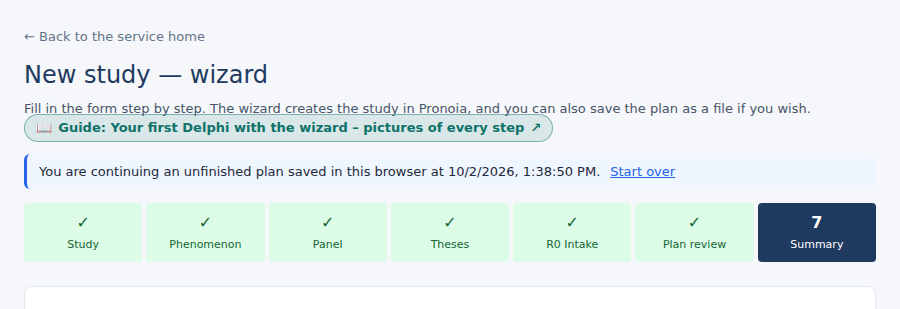
- An unfinished plan is kept. The wizard saves it in your browser after every change, so you can continue later on the same computer.
- Nothing is locked. Everything can still be edited in Pronoia after the study has been created.
Start from a template
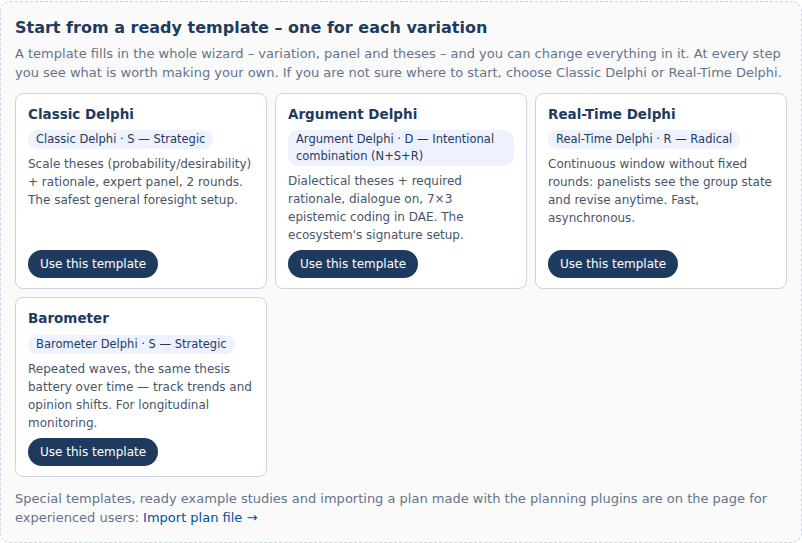
The templates are at the bottom of the wizard's first step, below the navigation buttons. There are four, one for each Delphi variation:
- Classic Delphi – scale theses with reasoning and an expert panel, two rounds. The safest first choice.
- Argument Delphi – the reasoning and the panel's discussion are the core of the data.
- Real-Time Delphi – one round that is open from start to finish; panelists see the group's position and update their own at any time.
- Barometer Delphi – the same theses in recurring measurement waves for long-term monitoring.
If you are not sure where to start, choose Classic Delphi or Real-Time Delphi. Press Use this template on the template's card.
Once a template is loaded, an orange box at the top of every step tells you what is worth changing in the template at that step. If you had already written a title or purpose, the template does not replace them.
Step 1: Study
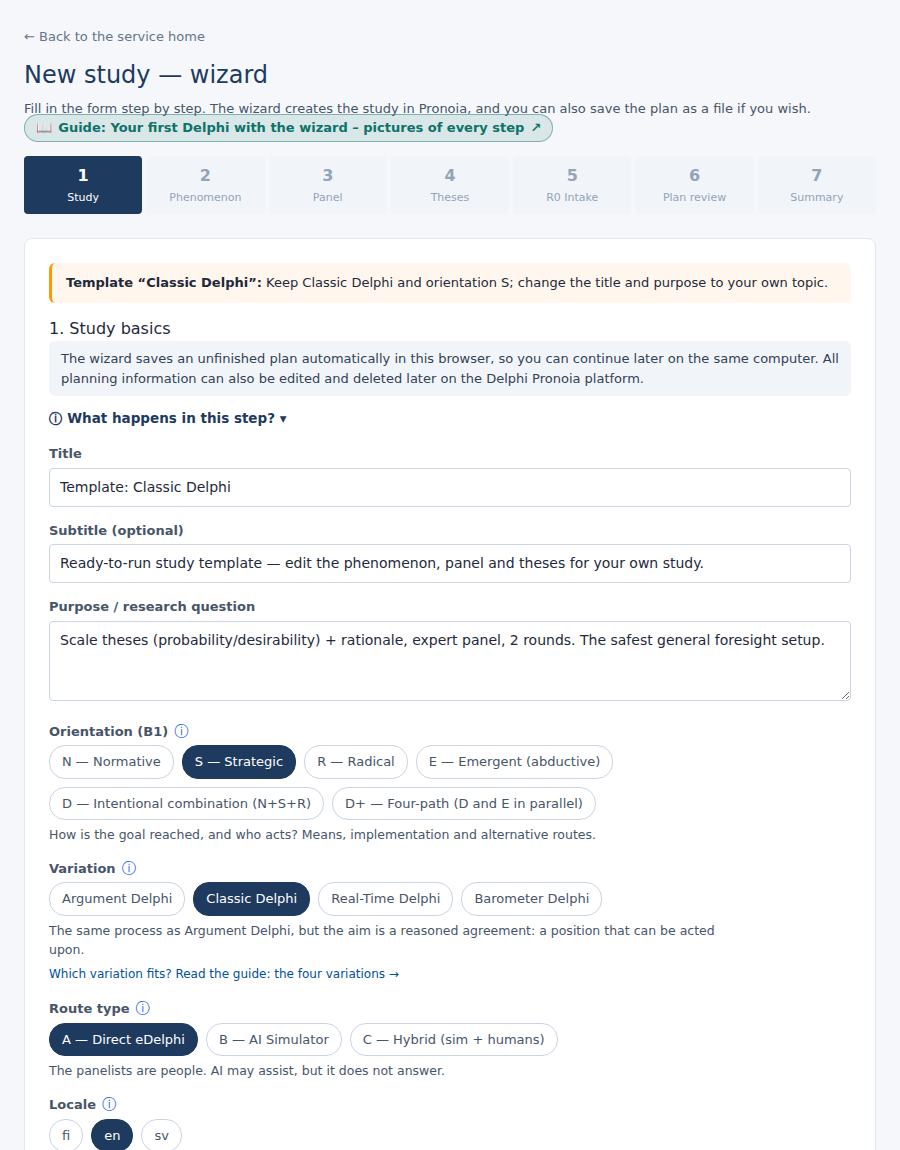
Write the Title and Purpose / research question for your own topic. On a first study, keep the template's orientation and variation as they are – they were chosen to fit the template. Each option has a short explanation underneath, and the link Which variation fits? Read the guide: the four variations → takes you to a comparison.
Locale is the language in which the panelists see the study. It can differ from the language you use the wizard in.
Step 2: Phenomenon
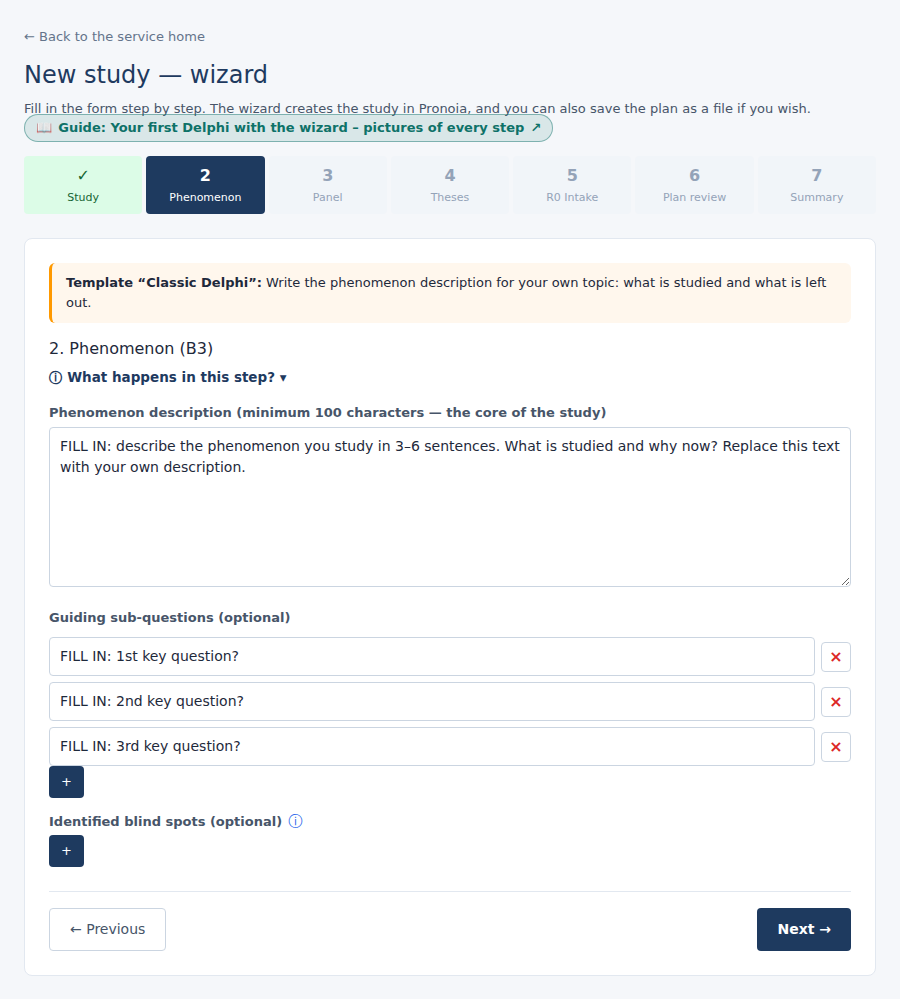
The phenomenon description is the core of the study: what is studied and what is left out. Replace the template's FILL IN text with your own description – at least 100 characters. Sub-questions and blind spots are optional; empty rows can be removed with the × button.
Step 3: Panel
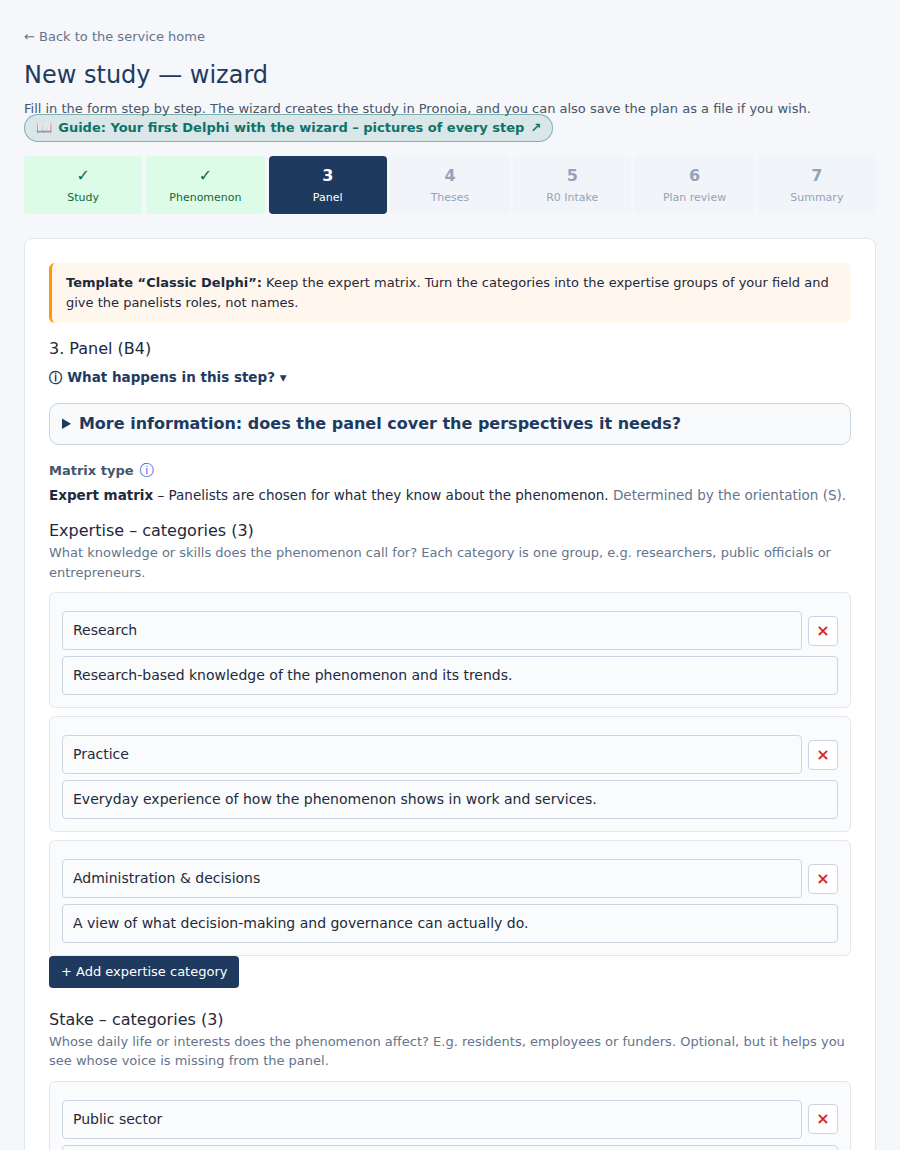
The panel is described as a matrix with two axes: Expertise (what the panelist knows about the phenomenon) and Stake (whom the phenomenon affects). Each axis has categories, and each category has a title and a description. Change the template's categories into the groups of your own field.
Panelists are written as roles, not names – for example "municipal director of education". Names and email addresses are added later in Pronoia's panel view. The panel must include at least one human; AI panelists are optional.
An AI panelist's perspective profile is shown as a chart: the four axes with their names and values, and the other AI panelists as faint dashed outlines, so you can see how far apart the profiles are. Download PNG and Download SVG save the chart with its headings and the poles of each axis, for example for a report or a slide.
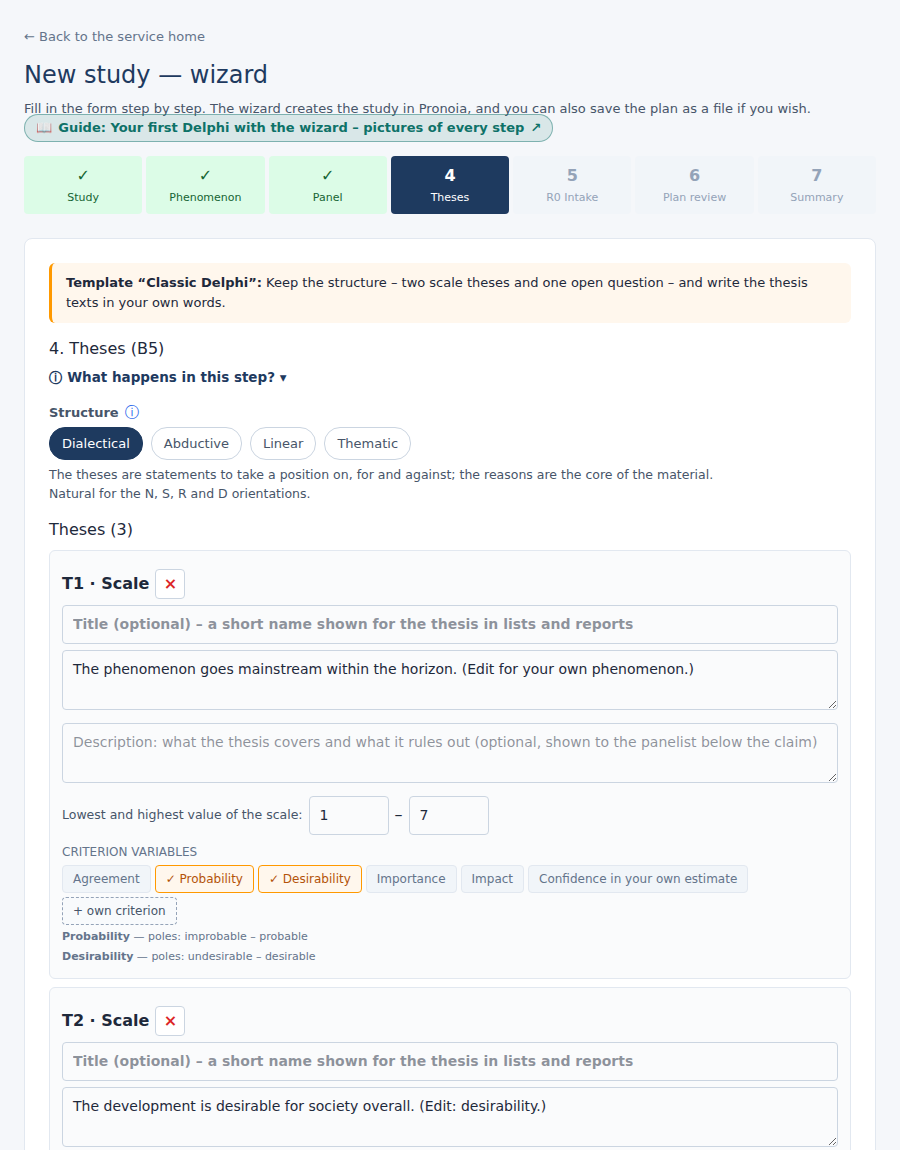
Step 4: Theses
The theses are the statements and questions the panel answers. Keep the template's structure and question types, and write the thesis texts in your own words (at least 20 characters). You add new theses with the buttons at the bottom of the page, for example + Scale or + Open question.
Step 5: R0 Intake
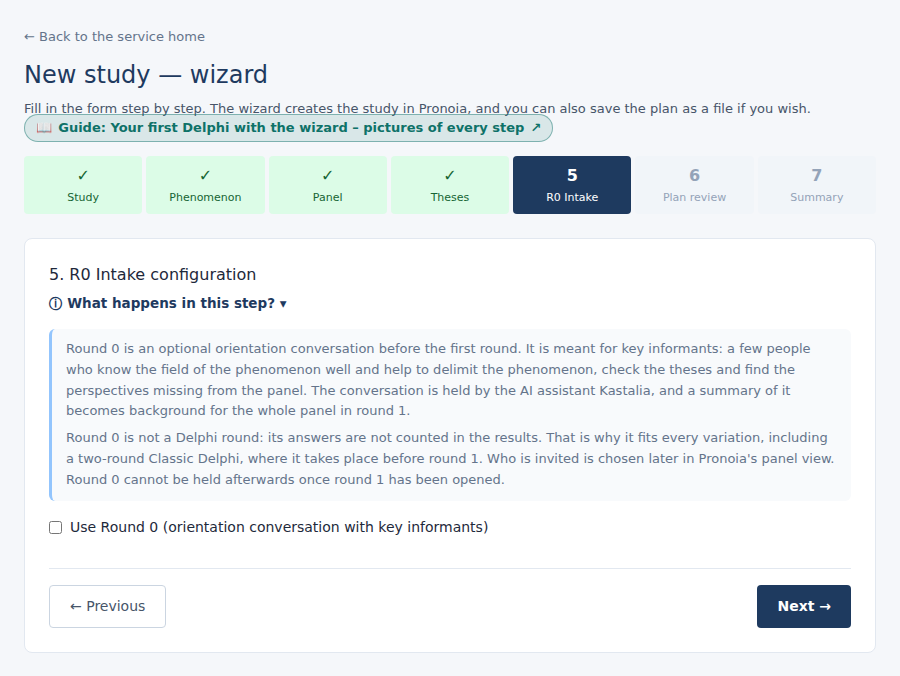
Round 0 is an optional orientation conversation with a few key informants before the first round. It is off by default, and on a first study it is best left off. In the Barometer template, this step also sets the schedule of the measurement waves.
Step 6: Plan review
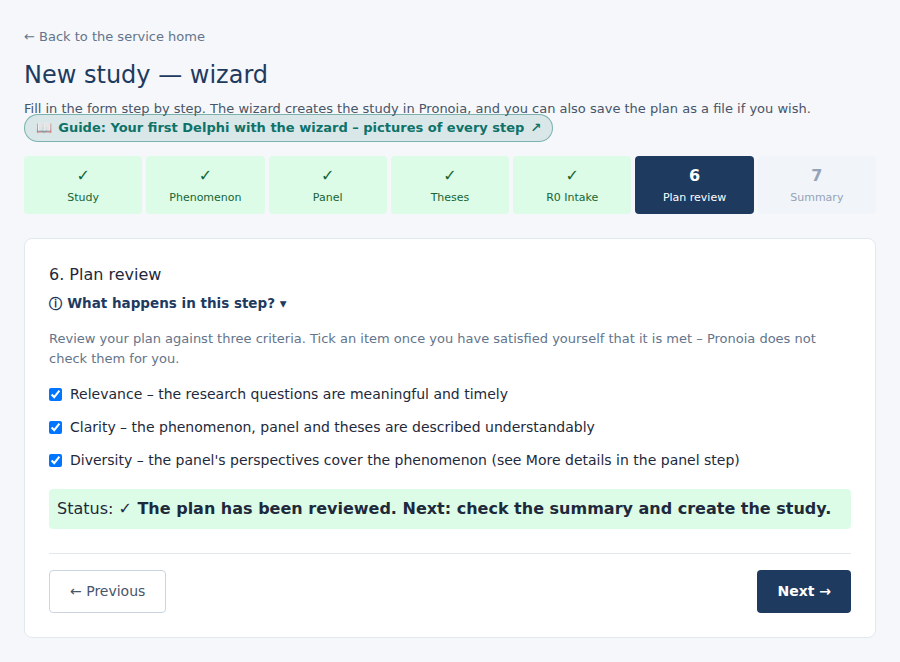
Review your plan against three criteria: relevance, clarity and diversity. Tick a criterion once you have satisfied yourself that it is met – Pronoia does not check them for you.
Step 7: Summary and creation
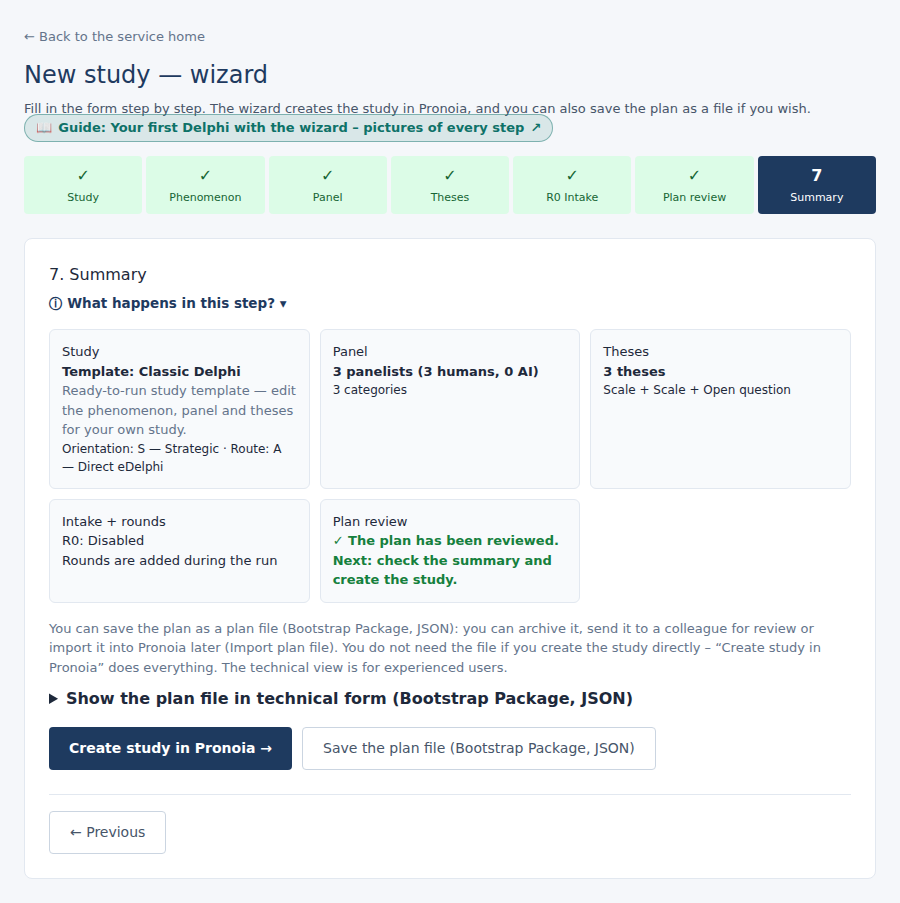
The summary shows the whole plan at a glance. When everything looks right, press Create study in Pronoia →. The study is created at once, and you can open it in the facilitator view.
If you like, you can also save the plan as a file with Save the plan file (Bootstrap Package, JSON) – for an archive or for a colleague to check, for example. You do not need the file if you create the study directly.
If you stop halfway
When you open the wizard again on the same computer and browser, it continues where you left off and tells you when the draft was saved. Start over gives you an empty wizard – the wizard asks you to confirm before the draft is removed.
What next
The study is now in Pronoia as a draft. Next you finish it: confirm the AI mode, fill in the controller, make the theses your own, add the real panelists and create the invite links. This is shown with pictures in Finishing your plan in Pronoia. From opening the round onwards: The facilitator's process, from planning to handover.